Choose live tracking or a manual calculation
A rucking calculator app is useful when it keeps the weight you carry alongside the distance you walk. Begin at the main Rucking.Pro app guide for the current iPhone and Android downloads. Use live tracking while you walk, or a manual calculator when you already know the distance.
The distinction matters. A manual entry does not reconstruct a missing GPS route. A live record can preserve workout measurements, but its calorie figure remains an estimate. Neither method can tell you exactly how much energy your body used.
Prepare the inputs before starting
- Enter actual body weight separately from equipment weight.
- Weigh the whole vest or loaded backpack, including the carrier and other contents.
- Choose vest or backpack to match the setup.
- Check the units and the effort option before beginning.
- Use a short familiar route to test tracking and saving before a long outing.
Choose your route and load from what you can currently manage. The value already showing in a form, a product’s maximum capacity, or a calorie example is not an appropriate starting-weight recommendation. A light load, or an unloaded baseline walk, may be the useful starting point.
What to record during and after the walk
Check that the workout has started. When you finish, inspect the distance and elapsed time, then note meaningful stops, terrain changes, or an equipment problem. Do not infer a training breakthrough from a GPS jump or a session that was accidentally left running.
Average pace is useful context. Dividing 60 elapsed minutes by three miles gives 20 minutes per mile. If those 60 minutes included a long break, label that convention rather than comparing the result directly with another app’s moving-time pace.
Understand the browser tool
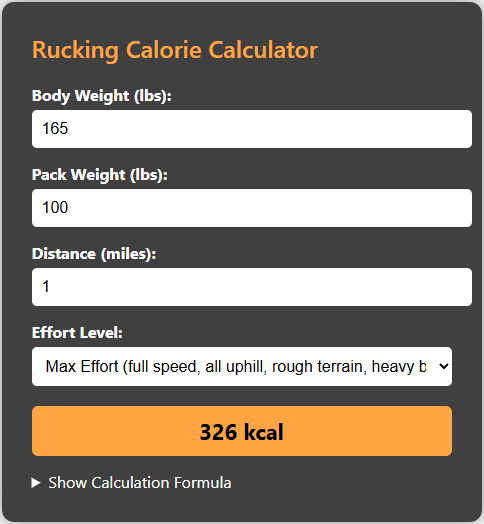
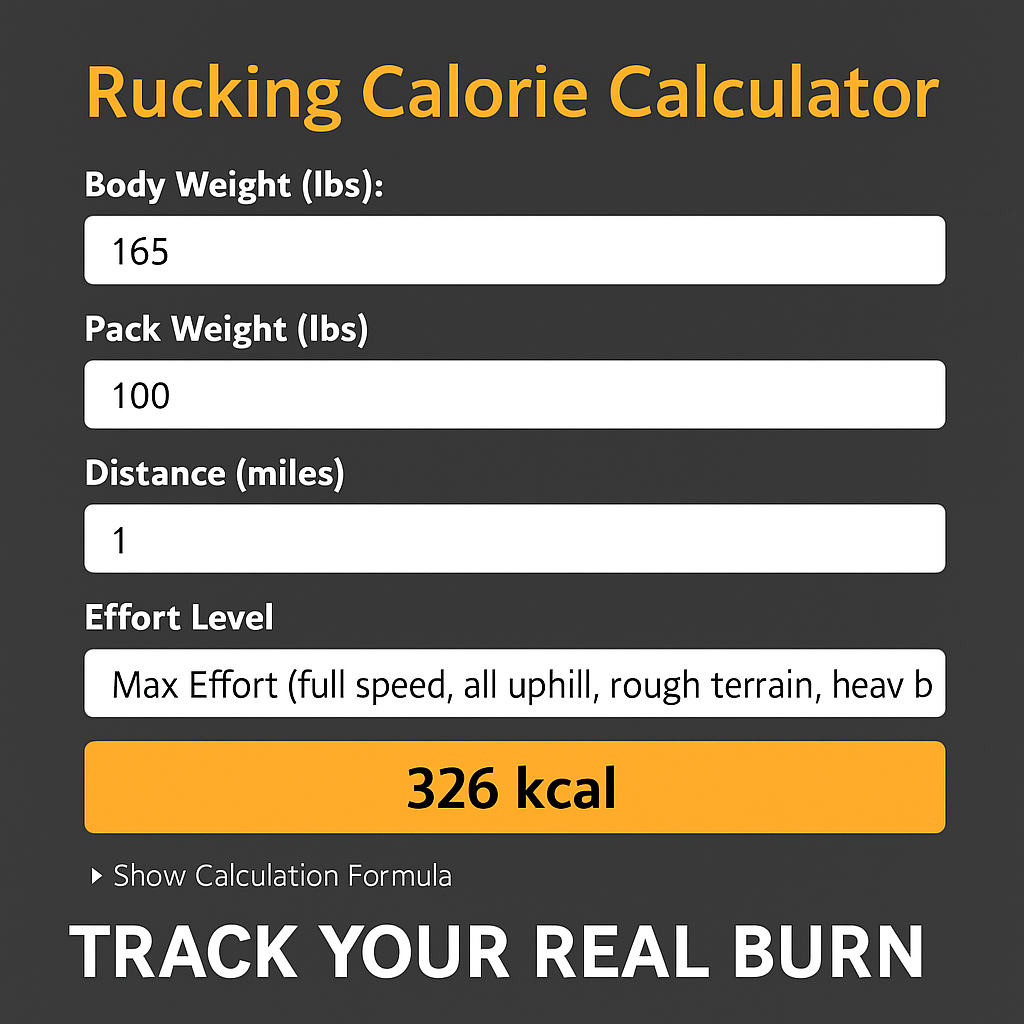
The Rucking.Pro web calculator uses miles, body weight, carried weight, a broad effort setting, and carry type. It does not directly use exact speed, measured grade, elapsed time, or heart rate. Read the method on the main page before assuming its result includes every detail of a recorded route.
The result combines a modeled walking component and an added-load component. It is not all extra calories from the vest. Different calculator and watch totals also do not prove that either one is exact. Keep estimates labeled by their source instead of adding them together.
Make comparisons that answer a real question
If you are comparing two loads, keep the route and other settings consistent. If you are comparing routes, note terrain and time as well as distance. Changing every input at once may produce a bigger number without explaining why the session felt different.
As an Amazon Associate we earn from qualifying purchases through product links in this article.
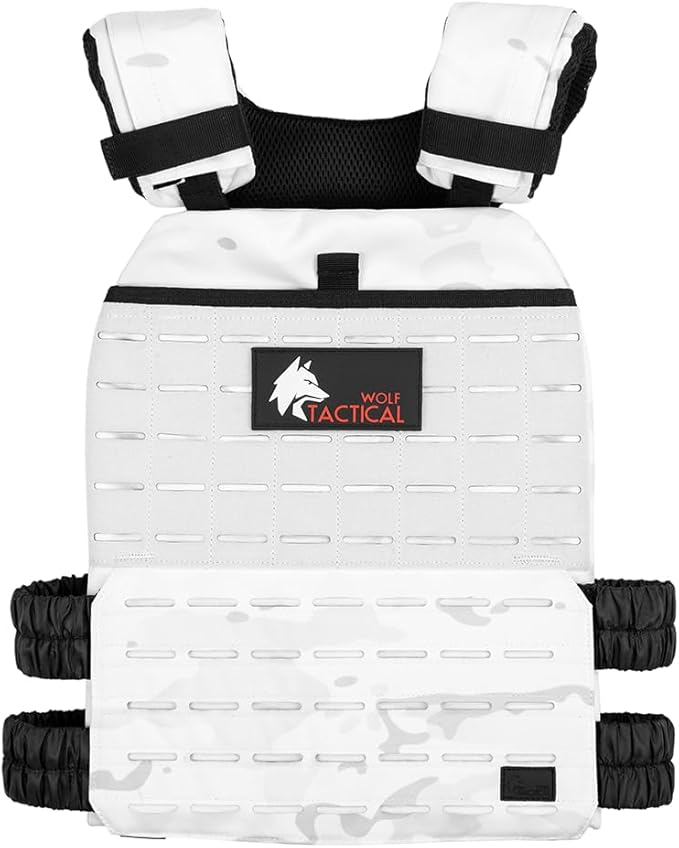
If you prefer a traditional weighted vest for comfort during longer walks consider the Wolf Tactical Adjustable Weighted Vest. It is beginner friendly, distributes load well, and works for both walking and strength work. Compare sizes before buying and read reviews.

Also remember hydration matters on long loaded walks. If you use a rucksack or hydration pack, the CamelBak Motherlode 100oz Mil Spec Crux Hydration Backpack works well to combine fluid and weight carriage. The app can help you estimate caloric burn with different pack weights so you can plan hydration and nutrition accordingly.

Get the current app for your phone
The store listings describe GPS distance, time, pace, and estimated calories with load and carry-type settings. Apple Health and Health Connect access is optional and depends on permission and compatible data. Your phone alone does not supply continuous heart-rate measurements.

Download for iPhone · Get Rucking on Google Play · Read the main Rucking.Pro app guide
Keep one primary workout record
If a watch or another app has already saved the walk, check the health record before adding another copy. Comparing calorie estimates in notes is different from logging both as separate exercise. Avoid counting an ordinary daily walk again if it is already included in your usual activity allowance.
Review the week beyond calories
Look at completed distance, consistency, comfortable pacing, and recovery. These can improve while the calculator result stays the same. If a heavier load changes your normal gait, causes pain, or restricts breathing, reduce the challenge and reassess rather than chasing a higher estimate.
The best use of a calculator is to make your assumptions visible. Keep the inputs honest, note what the formula leaves out, and use the record to choose a manageable next walk.
App links and feature references checked October 7, 2026. See the App Store listing, Google Play listing, and main calculator guide for current details.